Roblox Spending Limits for Parents: Set a Monthly Cap
 By Vini Gürk · Editor
Published Oct 9, 2026 · 4 min read
In this guide
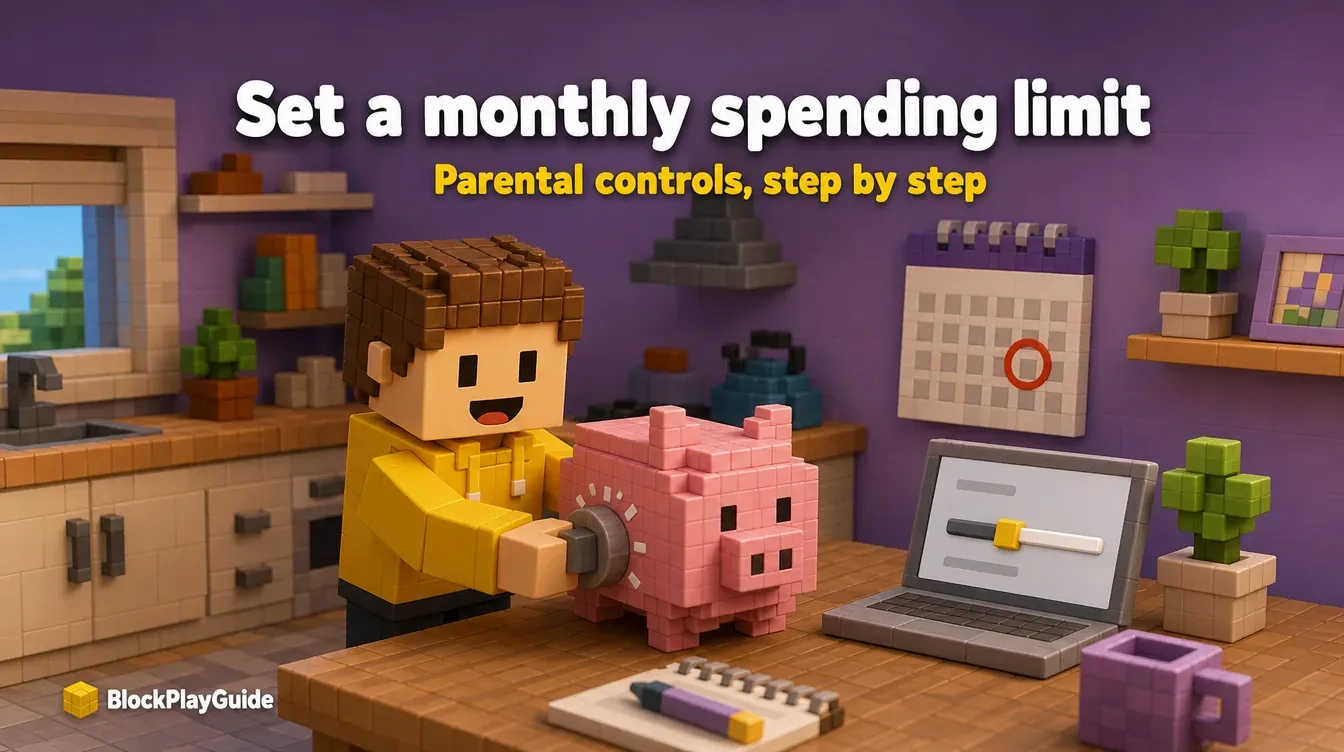
Roblox lets a parent put a monthly cap on what a child’s account can spend, and send an alert for every purchase. Both settings take a few minutes once your account is linked. This guide covers the setup, what the limit does not cover, and how to read the purchase history.
Before you start: link a parent account
Every spending control lives in Parental Controls, and that needs a Roblox account with parent privileges linked to your child’s account. If you have not done that yet, our Roblox parents guide walks through linking first.
In most regions, monthly spending limits are available for children under 13.
How to set a monthly spending limit
- Log into your account with parent privileges.
- Go to Settings, then Parental controls.
- Scroll down to Settings you manage.
- Click Spending restrictions, then Monthly spending limit.
- Enter the amount and click Update.
Here is how the limit behaves once it is on:
| Question | Answer |
|---|---|
| What happens at the limit? | Your child sees a message and cannot make more purchases that month |
| Do I get notified when it is reached? | No |
| When does it reset? | At the end of the calendar month |
| Does unused room roll over? | No |
| Does it block gift card redemptions? | No |
Turn on purchase notifications
Because Roblox does not tell you when the limit is hit, notifications are the other half of the setup. Go to Settings → Parental controls → Settings you manage → Spending restrictions → Spending notifications and choose one:
| Option | What you get |
|---|---|
| All transactions | A notification for every purchase on your child’s account |
| High spend alerts | An email when your child spends $100, $250 and $500 USD (or the local equivalent) in a month, then one every ten transactions |
| None | No Roblox alerts. You may still get emails from a payment processor or for subscriptions. |
High spend alerts are on by default for linked parents. For a young child, All transactions is the better choice: the first alert at $100 comes late for a small budget.
The gaps a limit does not cover
A spending limit is useful, but it has three known gaps.
- Gift cards. Redeeming a card is not affected by the limit, and the card’s value can then be spent. Agree on house rules for birthday and holiday cards. Our gift cards guide explains how card value works.
- Consoles. The limit may not apply on some consoles, and it does not affect spending through Xbox at all. Set a limit on the console itself.
- Subscriptions. Roblox Plus and private servers renew every month. A private server renews straight from the Robux balance, so check the game pages for active servers. See our private servers guide.
Check the Robux balance and add Robux
From Parental Controls you can also see your child’s current Robux balance: select your child’s account and scroll down to Robux. The same section has an Add Robux button, which lets you top up the balance yourself instead of sharing a payment card. Our cheapest way to buy Robux guide compares the packs.
Read the transaction history
To see exactly where Robux went, open the account’s transactions page. On your child’s account, click the Robux icon, then the Robux amount, to open My Transactions. You can filter it:
| Filter | Shows |
|---|---|
| Summary | Totals for the period |
| Currency Purchases | Robux bought with money |
| Purchases | Items, passes and other things bought with Robux |
| Sales of Goods | Robux earned from selling |
| Group Payouts | Robux received from groups |
Going through the Purchases list together once a month is a low-drama way to talk about spending. If you see purchases nobody in the house remembers making, treat it as a possible account problem and read our hacked account guide.
Sending Robux between accounts
Roblox Plus members can send Robux to other players. For anyone under 16, a linked parent has to approve every transfer, and transfers are final. If your child says a friend “needs” Robux, that approval step is your chance to ask questions.
Sources checked October 2026: Roblox help: monthly spending limits, Roblox help: spending limits FAQ, Roblox help: spending notifications, Roblox help: Parental Controls overview, Roblox help: transactions page, Roblox help: sending Robux.
Frequently asked questions
How do I set a spending limit on my child's Roblox account?
Link a parent account, then go to Settings, Parental Controls, Settings you manage, Spending restrictions, Monthly spending limit. Enter the amount and click Update.
Do Roblox spending limits block gift cards?
No. Roblox says monthly spending limits do not affect gift card redemptions, so talk with your child about cards from relatives too.
Will I get an email when my child hits the limit?
No. Your child sees a message and cannot buy more that month, but the parent is not notified. Turn on All transactions notifications if you want an alert for every purchase.
Does the unused limit carry over to next month?
No. The limit resets at the end of each calendar month whether or not it was reached, and nothing rolls over.
Does the Roblox limit work on Xbox?
No. Roblox spending limits do not affect purchases made through Xbox. Use the Xbox family settings to require approval there.