Minecraft Parental Controls: Multiplayer, Realms, Chat and Purchases
 By Vini Gürk · Editor
Published Oct 10, 2026 · 4 min read
In this guide
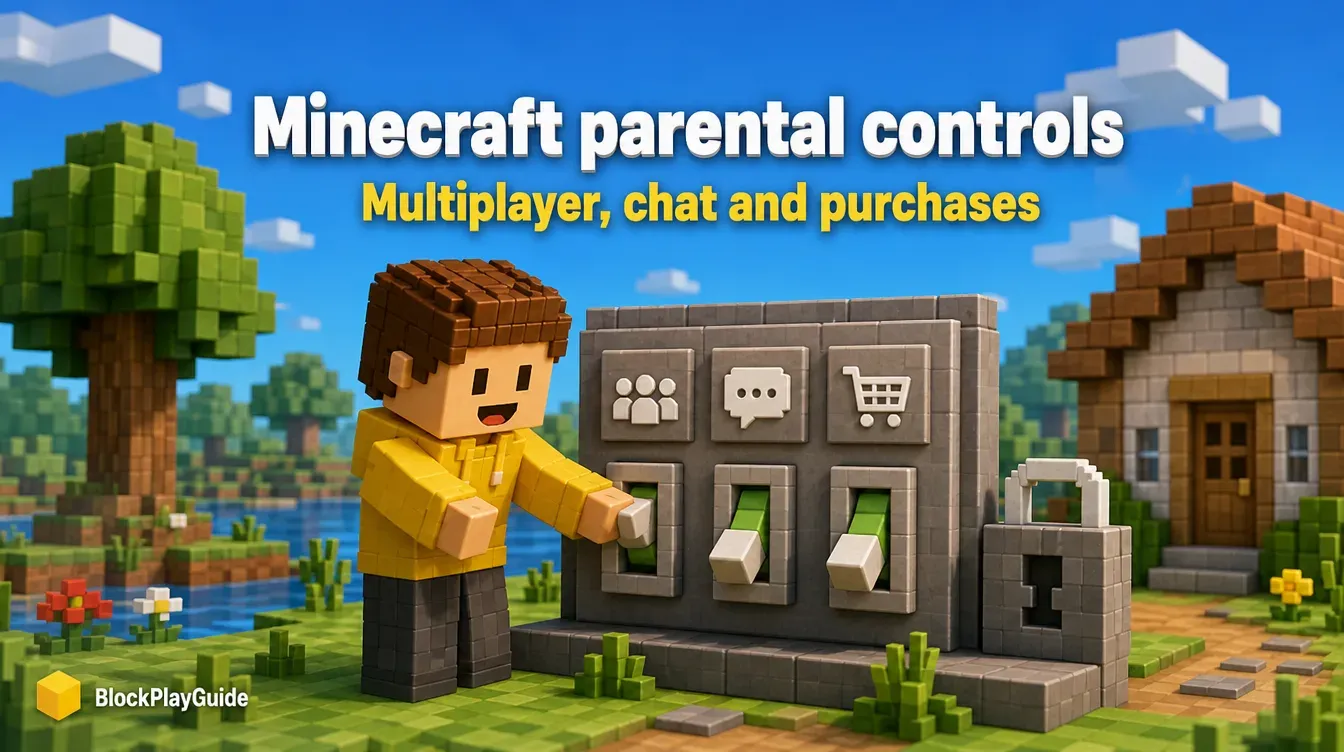
Minecraft has few safety switches inside the game itself. The controls that decide whether your child can play online, join a Realm, chat or spend money live in your family’s Microsoft account. This guide walks through each one, using Xbox Support and Microsoft Support as the sources.
How Minecraft’s controls work
Your child signs into Minecraft with a Microsoft account. When that account belongs to a family group, the organizer decides what it can do. There are two places to visit:
| Setting | Where you change it |
|---|---|
| Play the game if it is above the age limit | Xbox Family Settings app |
| Online multiplayer | Xbox Family Settings app, Xbox console or xbox.com |
| Create or join Realms | Xbox Family Settings app or Xbox console |
| Chat with other players | Xbox console or xbox.com privacy settings |
| Purchases and Minecoins | Microsoft Family Safety |
Xbox Support says only the organizer can manage these settings, and child accounts can view them but not change them. It also notes the Xbox Family Settings app is available only in certain regions.
Set up Minecraft in the Xbox Family Settings app
The Xbox Family Settings app has a screen just for Minecraft. Xbox Support describes these steps:
- Sign in to the app with the organizer’s Microsoft account.
- Select your child’s tile, then the Settings icon.
- Under Content restrictions, select Manage Minecraft.
- If Minecraft is rated above your child’s age limit, turn on Allow game play to give an exception.
- Turn on Multiplayer to let your child play with others online, even if their account settings block multiplayer.
- Turn on Clubs to let your child create and join Minecraft Realms.
You can turn any of these off later by repeating the steps. Leaving Multiplayer and Clubs off keeps Minecraft single-player only, which is a reasonable starting point for younger kids.
Realms and multiplayer from an Xbox console
If you prefer the console, Xbox Support lists this path:
- Press the Xbox button and go to Profile & system > Settings > Account > Family settings > Manage family members.
- Select your child’s account, then Privacy & online safety > Xbox privacy.
- Select View details & customize > Friends & clubs and set “You can create or join clubs” to Allow. This is what Realms needs.
- Go back and open Communication & multiplayer. Set “You can join multiplayer games” and “You can join cross-network play” to Allow if you want online play.
A Realm is a private world: only people the owner invites can join. Our Minecraft Realms setup guide for parents covers plans, invites and share links.
Chat with other players
Chat sits in the same Communication & multiplayer section on the console. Xbox Support says you can set communication for players on the Xbox network and for players outside it. You can also reach the same privacy settings at xbox.com: sign in, select your gamertag, open More actions, choose Xbox settings > Privacy & online safety, pick your child’s gamertag and use the Online Safety and Privacy tabs.
Xbox Support adds a note: leaving communication disabled may limit some parts of multiplayer in the game. A common starting point is friends only, widened once you know who your child plays with. After you save changes, your child should sign out and back in on the console so they take effect.
Purchases and Minecoins
Minecoins and Marketplace items are bought through the Microsoft Store, so spending is controlled in Microsoft Family Safety. Microsoft Support describes these settings:
- Require approval for every purchase. Your child sends a request, and you approve or decline it from the notification.
- Get notified about every purchase: you see what was bought even when approval is off.
- Add money to your child’s account: they can spend only that balance, and the account cannot be overdrawn.
Find them in the Family Safety app or at account.microsoft.com/family: select your child, then Manage spending. Our Minecoins and Marketplace guide explains what coins buy.
Common scams to warn your child about
Strangers in chat sometimes offer “free Minecoins”, account upgrades or mods that need a password. None of these are real. Teach your child to never share their Microsoft account password, even with a friend, and to tell you when someone asks for it. The tricks are the same ones described in our guide to free-Robux scams and our Roblox account security guide.
Sources checked October 2026: Xbox Support: Manage a member’s safety settings to access Minecraft features · Xbox Support: Manage online safety and privacy settings · Xbox Support: Xbox Family Settings app · Microsoft Support: Spending limits in Family Safety
Frequently asked questions
Where are Minecraft's parental controls?
Mostly outside the game. Minecraft uses your child's Microsoft account, so multiplayer, Realms and chat are set in the Xbox Family Settings app, on an Xbox console or at xbox.com. Purchases are set in Microsoft Family Safety.
Why can't my child join a friend's Realm?
Xbox Support says a family organizer has to enable Clubs under Manage Minecraft in the Xbox Family Settings app, or allow creating and joining clubs on the console. Multiplayer also has to be allowed.
Can I stop my child from buying Minecoins?
Yes. In Microsoft Family Safety, turn on Require approval for every purchase. You then get a request to approve or decline each time your child tries to buy something.
Can my child change these settings?
No. Xbox Support says only a family group organizer can change these settings. Child accounts can view them but not edit them.